An SPF record tells email providers which servers are authorised to send email on behalf of your domain. Without one, attackers can send emails that appear to come from your business. This tool generates the record for you, correctly formatted and ready to add to your DNS.
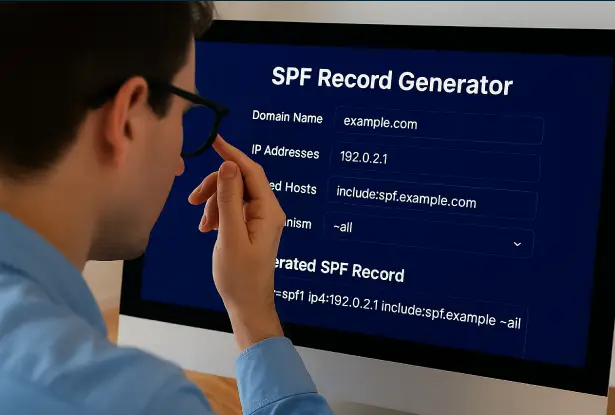
SPF (Sender Policy Framework) is an email authentication protocol that prevents attackers from sending emails using your domain name. It works by publishing a DNS record that lists every server and service authorised to send email on your behalf.
When an email arrives, the receiving server checks the SPF record for the sender’s domain. If the sending server is not on the list, the message is flagged as suspicious or rejected entirely.
Steps
Type your domain name (for example, yourbusiness.co.uk). The tool uses this to generate the DNS record name.
Tick every service that sends email using your domain. This includes your main email provider (Microsoft 365, Google Workspace), marketing platforms (Mailchimp, SendGrid), CRM tools (HubSpot, Salesforce), and any other service that sends on your behalf.
If you use services not on the list, or have dedicated mail servers with static IP addresses, add them in the custom entries section. The tool automatically formats them as include: or ip4:/ip6: entries.
Select how strictly receiving servers should handle emails from unlisted senders. Start with Soft Fail while testing, then move to Hard Fail once you are confident.
Copy the generated TXT record value and add it to your domain's DNS settings alongside your domain name as the hostname.
The tool includes pre-configured SPF entries for 16 of the most common email services. When you tick a service, its known SPF include domain is added to your record automatically.
If you use a service that is not listed, add its SPF include domain in the custom entries section. Your provider’s documentation will tell you what to add, usually in a “Set up SPF” or “Email authentication” guide.
If your provider gives you an SPF include domain (for example, include:mail.example.com), enter it here. The tool will format it correctly.
If you have a dedicated mail server with a static IP address, enter it here (for example, 203.0.113.10 or 203.0.113.0/24 for a range). The tool will prefix it with ip4:.
For IPv6 addresses, enter the full address. The tool will prefix it with ip6:.
The recommended default. Messages from unlisted servers are accepted but marked as suspicious. This is the safest option while you are setting up and testing your SPF record, because it will not block legitimate emails if you have missed a service.
Messages from unlisted servers are rejected outright. Only use this once you are completely confident that every legitimate email service is included in your record. If you switch to Hard Fail too early, you may block your own emails.
No opinion expressed. The SPF record is present but does not influence delivery decisions. This is rarely useful and is not recommended.
Tips for staying under the limit: – Remove services you no longer use – Use IP addresses instead of includes where possible – Consider SPF flattening services if you genuinely need more than 10 includes
Enter your domain without "www" or "https."
Select every service that sends email using your domain.
Add any custom include domains or IP addresses not listed above.
Soft Fail is recommended for most businesses. Move to Hard Fail once all legitimate senders are included.
SPF allows a maximum of 10 DNS lookups. Each "include:" counts as one lookup.
All record generation happens in your browser. Nothing is stored or sent to any server.
A free tool from Cyber Kaizen.
SPF tells email providers which servers can send email from your domain. DMARC tells them what to do when a message fails that check.
Without DMARC, most email providers will accept emails that fail SPF checks and deliver them anyway. DMARC adds the enforcement layer that makes SPF effective.
For the strongest email security, you need all three protocols configured correctly:
Authenticates the sending server.
Authenticates the message content with a digital signature.
Ties them together and sets the enforcement policy.
Use our free DMARC Record Generator to create your DMARC record, and our Email Security Checker to verify that everything is configured correctly.
If any service sends email using your domain (marketing platforms, invoicing tools, helpdesk software, etc.), it must be in your SPF record. Missing one means those emails may be flagged as spam or rejected.
Every include: counts as a DNS lookup. If you exceed 10, your entire SPF record fails. The tool warns you when you are approaching the limit.
Switching to -all before confirming all legitimate senders are included will block your own emails. Always start with Soft Fail (~all) and test thoroughly.
A domain can only have one SPF record. If you have two, both will be invalid. Make sure to combine all services into a single record.
When you add or remove email services, your SPF record needs to be updated. An outdated record is a common cause of legitimate email being rejected.
Call us: 0800 208 8456 | Email: hello@cyberkaizen.co.uk